

Semantic Model Refresh Templates in Power BI (Preview)
Semantic Model Refresh Templates in Power BI enables you to orchestrate semantic model refreshes using Fabric Data pipelines. This feature allows you to visualize and sequence refresh activities for common and advanced scenarios.
You can access these templates by selecting Create advanced refresh from the refresh dropdown menu on the semantic model details page in your Microsoft Fabric workspace.

The template gallery includes several common refresh scenarios such as event-driven refreshes, refreshing a semantic model after a dataflow runs, scheduled refreshes, and sequencing multiple semantic model refreshes.

When you select a template, you can start a guided tour that walks you through the steps to set up a semantic model refresh.

The template gallery can be reopened from the pipeline ribbon in the Home tab by selecting the Use a template button.
Let’s dive in and see several examples for the following scenarios:
Refresh semantic model after a dataflow refresh
Incremental Refresh
Adding an alert activity
Schedule refreshes
Sequence multiple semantic models
Event driven or triggered refresh
Refresh semantic model after a dataflow refresh
You’ll be prompted to configure the dataflow and workspace you want refreshed.
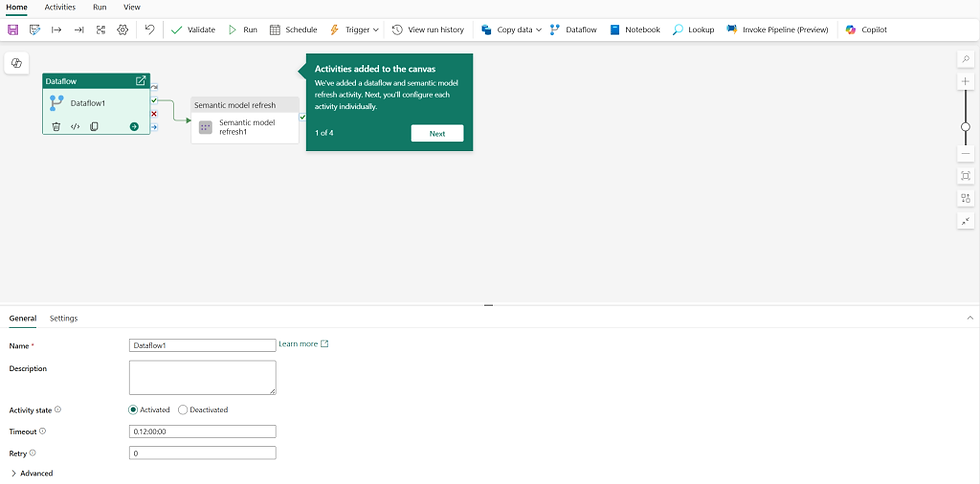
For the semantic model refresh settings, select the connection, workspace and semantic model to be refreshed.

Incremental (Partition) Refresh
Choose specific tables or partitions for incremental refresh scenarios where only updated data is refreshed instead of the entire model.

Adding an alert activity after semantic model refresh
Add additional activities, such as sending a Microsoft Teams or Outlook message, after a successful or unsuccessful execution. Select each activity to navigate to its settings.

Scheduled refreshes

Set up scheduled refreshes to define when and how often they occur, with flexible intervals such as minute-by-minute, hourly, monthly, or quarterly.
When finished, select Save and Run to execute the pipeline.

Sequence multiple semantic models
Use this template to refresh multiple semantic models in a workspace in sequence. The semantic model refresh activity allows you to connect to your Power BI semantic model datasets and refresh them from a pipeline. Configure the semantic model by selecting the connection, workspace, and semantic model to refresh. If you select tables, you can also choose partitions.
Example:

First refresh: Category tables
Second refresh: TagName
Second refresh: TagName

Event-driven or triggered refresh
This template enables you to set up an event that triggers a semantic model refresh. You can create rules on your real-time data within Fabric or externally. When a rule is activated, the selected action or notification is executed.
Refer to the documentation to learn more about event-driven data pipelines in Microsoft Fabric.

To configure:
Add activities to the canvas, rename the semantic model, add a description, and configure the activity state or timeout.
Configure the semantic model settings: add a connection, select the workspace and semantic model, and choose tables or partitions (optional incremental refresh).
Select Add Trigger and choose from Fabric or Azure events.
Refer to the documentation to learn more about Data pipelines event triggers in Data Factory.
Yorumlar